Adding a Form to Display Data From a Data Source
The FanClub application can add names to the fannames
data source, but end users do not get much visual feedback from
this task. The FanClub application needs to display the contents
of the fannames data source.
This task is divided into the following steps:
- Add a new form
to the project.
- Build the code
to extract the data from the fannames data source using the Language
Wizard.
- Design the form
to display the contents of fannames.
- Create a link
from Form1 to the new form.
x
Procedure: How to Add a New Form to Your Project
-
Right-click
the Forms folder in the Start procedure,
and in the shortcut menu, click New form.
WebFOCUS Maintain opens the form in the Form Editor.
-
Change
the name of the form from Form2 to ShowFan by right-clicking Form2
in the Project Explorer and clicking Rename.
-
Change
the title of the form from Untitled to Show Fan Club Members.
(Change the value for the Title property in the property sheet.)
xExtracting Data From a Data Source Into a Stack
Your next step is to create a function named GetFans,
which extracts all the information in the fannames data source and
places it into a stack named GetFanStack. Try this yourself or see
the next section for instructions.
Tip: Create the function and then use the Language Wizard
to generate the code.
x
Procedure: How to Extract Data From the Fannames Data Source Into a Stack
-
In the
Project Explorer, right-click the Start procedure,
click New, and then click Function (Case).
-
In the
New Function dialog box, name your function GetFans and
click OK.
-
In the
Project Explorer, double-click your new function to open it in the Procedure
Editor.
-
Make
sure your insertion point is placed after the statement
Case GetFans
but
before
EndCase
-
Open
the Language Wizard (right-click in the Procedure Editor window and,
from the shortcut menu, click Language Wizard).
-
Select Retrieve
records from a data source and click Next.
-
When
WebFOCUS Maintain asks you how you would like to retrieve records
from the data source, select Starting from the current
record position (Next) and click Next.
The Maintain language contains two commands to retrieve
data from a data source. This window determines which one
you want.
-
When
WebFOCUS Maintain asks you to select the data source segments
or fields whose records you want to retrieve, in the Available
fields box, expand the fannames data source,
expand the CUSTOMER segment, and move the SSN field
to the Fields to retrieve box. Then, click Next.
This window is where the Language Wizard determines from
which data source you are reading the data. Remember that
if you select a field in one segment, the rest of the fields in
that segment are also extracted. See Stacks and Implied Columns for
more information.
-
When
WebFOCUS Maintain asks you how many records you want to retrieve,
select All the records in the selected segment.
Also, make sure Change the current data source position
to the top is selected, ensuring that WebFOCUS Maintain
starts from the beginning of the data source when retrieving
records. Then, click Next.
-
When
WebFOCUS Maintain asks you to specify a stack, type GetFanStack in
the text box to create one, and make sure that Clear
the stack first is selected. You can leave the default
value 1 in the Place the records into the stack field.
Then, click Next.
-
When
WebFOCUS Maintain asks you to supply any conditions, you can leave
this window blank because you want to retrieve all records from
the data source. Simply click Finish.
The Language Wizard should generate the following code:
Reposition fannames.CUSTOMER.SSN;
Stack clear GetFanStack;
For all next fannames.CUSTOMER.SSN into GetFanStack;
xAdding an HTML Table to Your Form
You are going to display the fans from the fannames
data source using an HTML table. An HTML table displays the contents
of a data source stack in a read-only grid.
Another option for displaying the fans from the fannames data
source is to create a report procedure in WebFOCUS Developer Studio
and execute this code whenever you open this form.
x
Procedure: How to Add an HTML Table to Your Form
-
Double-click
on the form ShowFan in the Project Explorer
to display the form.
-
On the
Controls palette, click the HTML Table
 button.
-
Draw
a rectangle on the form representing roughly where you want your HTML
table to go on your new ShowFan form.
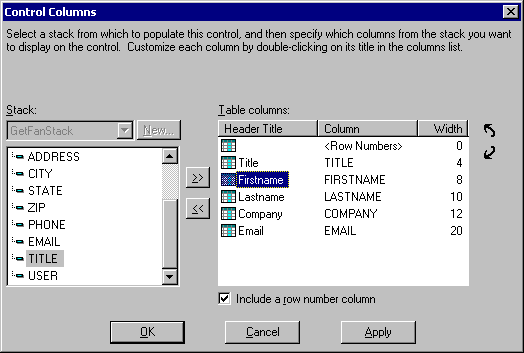
WebFOCUS Maintain opens the Control Columns dialog box,
where you define the contents of your HTML table.
-
Select GetFanStack from
the Stack list.
Note: Make sure you did not select AddFanStack.
The
Control Columns dialog box now displays the columns in the stack GetFanStack.
-
Copy
the fields LASTNAME, FIRSTNAME, COMPANY, EMAIL,
and TITLE into the Table Columns list.
Use the Move up
 and Move
down
and Move
down
 buttons
to rearrange these fields so that they are in the following order:
TITLE, FIRSTNAME, LASTNAME, COMPANY, and EMAIL.
buttons
to rearrange these fields so that they are in the following order:
TITLE, FIRSTNAME, LASTNAME, COMPANY, and EMAIL.
You
can change the appearance of any of these columns by opening the
Table Column dialog box. For example, suppose you want to change
the header titles for the FIRSTNAME and LASTNAME fields so that
they read First and Last.
-
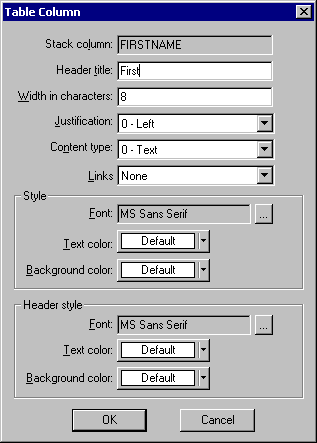
Double-click Firstname.
-
In the
Table Column dialog box, change the Header title to First.
You
can also change the width, justification, font, and color.
-
Click OK.
-
Repeat
the process to change Lastname to Last.
-
Click OK to
leave the HTML Table Columns dialog box.
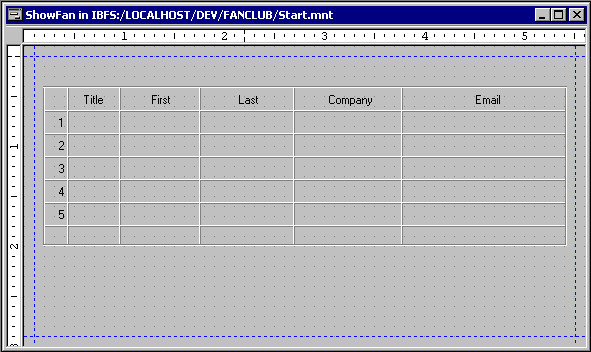
Your form resembles the following:
xCreating a Link From One Form to Another
Your final step in creating your new form ShowFan is
providing a way to open it from Form1. Do this by adding a button
to Form1 that runs the GetFans function and opens the ShowFan form.
x
Procedure: How to Link From One Form to Another
-
Make
Form1 the active window (you can select it from the Window menu
or double-click it in the Project Explorer).
-
On the
Control palette, click the Button
 control.
-
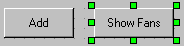
Draw
a rectangle to the right of the Add button on Form1.
-
Change
the text in this button to Show Fans.
-
Change
the name of this button to ShowFanButton.
-
Double-click
the button to open the Event Handler editor.
-
Select Click from
the list of events. (ShowFanButton should already be selected in
the list of form components.)
WebFOCUS Maintain adds the following code:
Case OnShowFanButton_Click
EndCase
-
Drag
the GetFans function from the Project Explorer
into the Event Handler editor between these two lines of code.
-
Drag
the ShowFan form from the Project Explorer
into the Event Handler editor after GetFans.
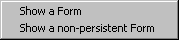
You see the following pop-up window.
-
Select Show
a Form.
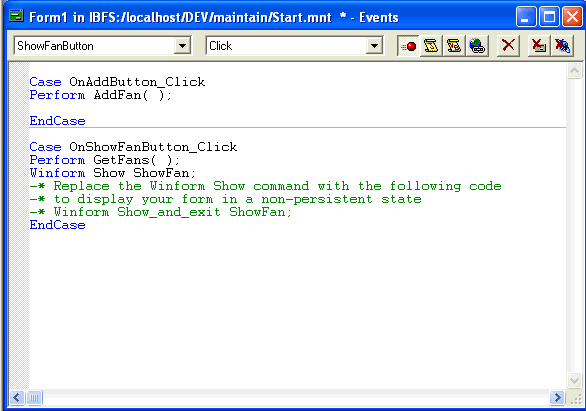
Comment text appears with the Winform Show command that
explains how to show a non-persistent form. Because you want a persistent
connection for this form, leave the comment text as is.
-
Close
the Event Handler editor.
-
Click Yes to
save your procedure.
-
Deploy
and run your application to see how it looks.
-
Close
the application before continuing the tutorial.